---
lastModified: 2026-09-08
title: Onboarding and General settings
description: Complete store setup and manage visibility, identity, markets, stock locations, and review availability.
seo:
description: "Complete store setup and manage visibility, identity, markets, stock locations, and review availability. This detail shows example or default fields."
---
Complete the guided setup when it appears, then use General to keep the store's core operating details accurate.
## Why and when to use this page
Use the setup cards the first time Runner asks for store details, a first product, and shipping. Return to General whenever your public store details, selling regions, currency, stock location, shipping setup, or review availability changes.
## Availability and prerequisites
- Open a Runner project with a store backend.
- If the backend is still being prepared, Runner shows **Please wait, the store admin is deploying...**.
- The setup assistant appears only for stores that have not completed it and can differ as Runner rolls out updated onboarding.
- Payment connection is a separate task in **Apps**. Finishing setup does not enable checkout or publish the storefront.
## Open General
**Entry path:** **Workspace → choose a store → Store Operations → General**
If Runner opens setup cards first, complete the required store details and resolve the other milestones. After setup, the General page becomes the normal destination.
[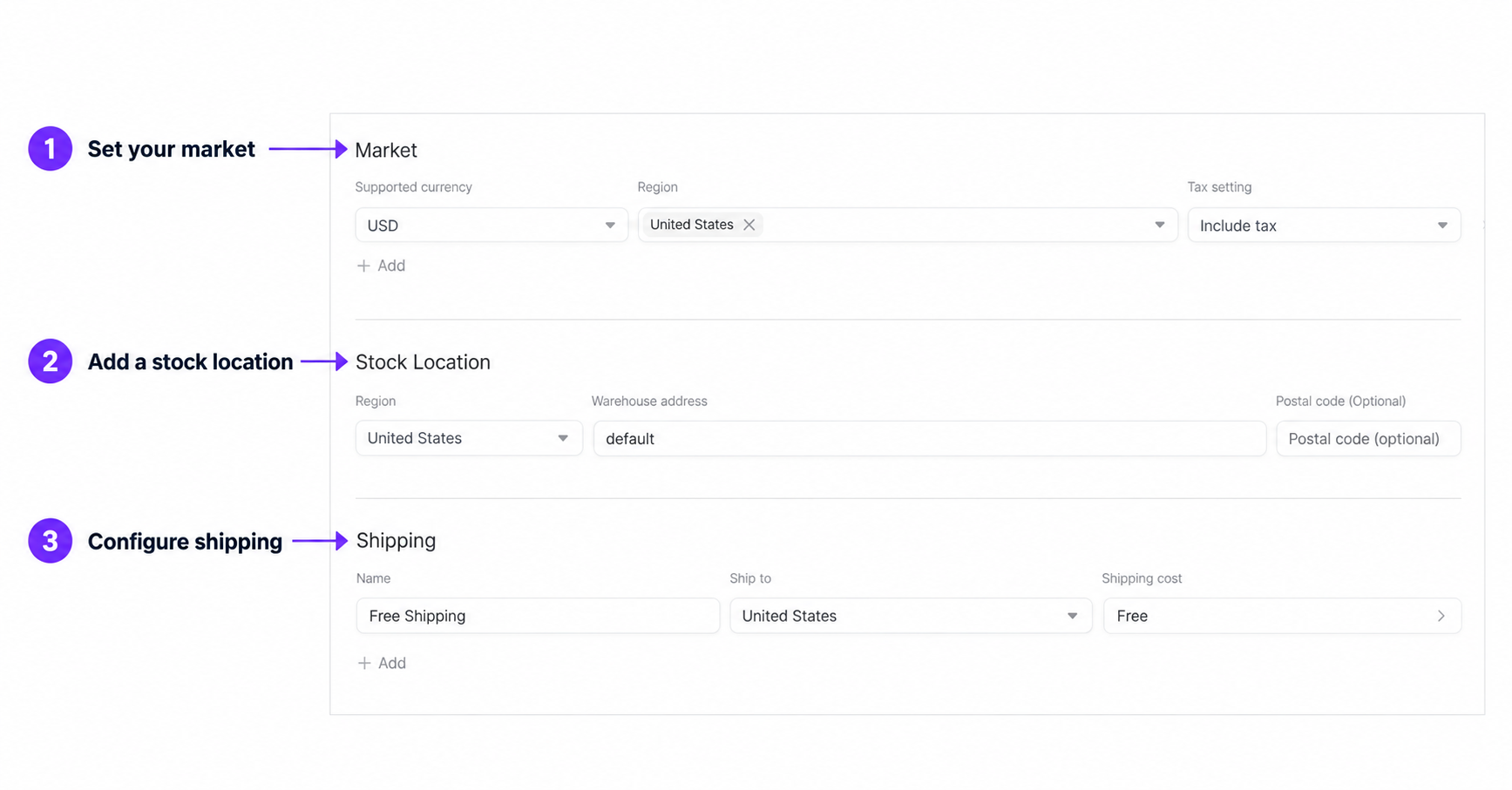](https://ixft9x6szo.ufs.sh/f/Cc8uxBgAYTzgtMoXR2q0HWgOalkhv5dfRGQjiY7nSITscAEm)
English callouts highlight the controls. Select the image to enlarge it.
This detail shows example or default fields. It does not confirm a saved Market, Stock Location, or shipping configuration.
## Main controls
| Control | Why you use it | What happens when selected |
| --- | --- | --- |
| **Set up** | Open the store-details milestone | Opens the required store-details form. |
| **Add a product** | Start the first-product milestone | Opens the product setup flow. |
| **Skip product setup** / **Skip shipping setup** | Defer an optional milestone | Resolves that setup card without configuring the skipped capability. |
| **Set up shipping** | Configure the shipping milestone | Opens shipping setup. |
| **Open Store Operations** | Leave the completed setup screen | Opens normal store administration after all milestones are resolved. |
| **Visible to customers** / **Hide store (Opening Soon)** | Change visibility later in General | The page-level **Save** stores the selected visible or hidden state. |
| **Add** in Markets or Stock Locations | Add another editable row | Creates an unsaved region or location row for you to complete. |
| **Product reviews** switch | Allow review functionality when supported | Saves this setting immediately. If the request fails, the switch returns to its earlier value; the page-level **Save** is not used for this switch. |
| **Save** | Apply changes across General | Becomes available after page-scoped changes, validates them when selected, and persists valid visibility, identity, market, location, and shipping edits. |
| **Configure** in a setup alert | Resolve a missing checkout prerequisite | Moves to the relevant General section, or opens the payment integrations view in **Apps**. |
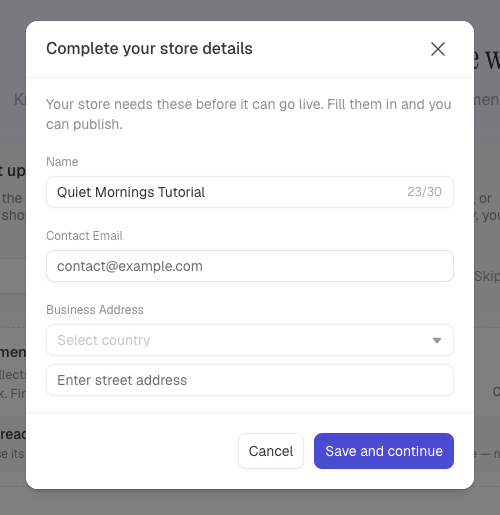
Start with store details. **Save and continue** submits the required fields; **Cancel** leaves the milestone unfinished.
## Complete the three setup milestones
1. Open **Store Operations**. A new store shows **Set up store details**, **Add your first product**, and **Shipping basics** instead of the normal admin menu.
2. In **Set up store details**, select **Set up**. Complete the store name, contact, and address fields requested by **Complete your store details**, then select **Save and continue**. This required milestone cannot be skipped.
3. In **Add your first product**, select **Add a product** and complete the product flow. Choose **Skip product setup** only if you intend to add the catalog later.
4. In **Shipping basics**, select **Set up shipping** and complete the requested fields. Choose **Skip shipping setup** only if you will configure delivery later.
5. Wait for **Store setup complete**, then select **Open Store Operations**.
6. Confirm the normal admin menu is available. If you skipped products or shipping, follow the corresponding guide before expecting a sellable store.
A direct Products link does not bypass incomplete setup. If an older store shows a different assistant, follow its visible required fields and optional Skip actions; do not look for payment or Go Live inside the three-card flow above.
The recording opens the store-details form, then closes it and returns to the setup cards. It shows the entry and required fields, not completed setup, publication, or a payment connection.
## Update General settings later
1. Open **Store Operations → General**.
2. Choose the intended store visibility.
3. Review the store name, contact email, and business address.
4. Review Markets, including selling countries, currency, and tax setting.
5. Review Stock Locations before configuring shipping or inventory.
6. Review Shipping, then select **Save** and wait for the saved state for those page settings.
7. Close and reopen General to confirm the saved Market, Stock Location, and store details.
8. Change the conditional **Product reviews** switch separately if needed, and wait for its immediate update to finish.
## States and limits
- The store name is required and the setup form limits it to 30 characters.
- The contact email must be a valid email address.
- Market currency affects product-price display. A product with a currency outside the saved regions shows a warning and may not show prices on the storefront.
- **Visible to customers** controls store visibility. Publishing storefront code and connecting a domain are separate tasks.
- Enabling reviews does not add missing review components to an older storefront. Runner can show guidance to ask the agent to add the capability and publish those storefront changes.
- The page-level **Save** covers visibility, store details, Markets, Stock Locations, and Shipping. The **Product reviews** switch saves separately and immediately.
## Troubleshooting
- **Save is disabled:** Make a page-scoped change; changing only **Product reviews** does not use this button.
- **Save reports an error:** Complete the fields named by the validation message, then try once more.
- **A setup alert remains:** Complete its named prerequisite, save it, then refresh. Stock, shipping, and payment are checked separately.
- **Payment is still missing after connection:** Return from the provider tab, wait for Runner to show the integration as enabled, and refresh if needed.
- **Reviews does not appear in the menu:** The switch, backend support, or storefront capability may not be ready. See the conditional review guide before trying a direct URL.
- **The page warns about unsaved changes:** Stay and save, or explicitly choose to exit without saving. Browser navigation alone does not apply the edits.
## Related guides
- [Shipping](./shipping)
- [Products](./products)
- [Reviews and Advanced Admin](./reviews-and-advanced-admin)
- [Store Operations overview](/en/guides/store-operations)