
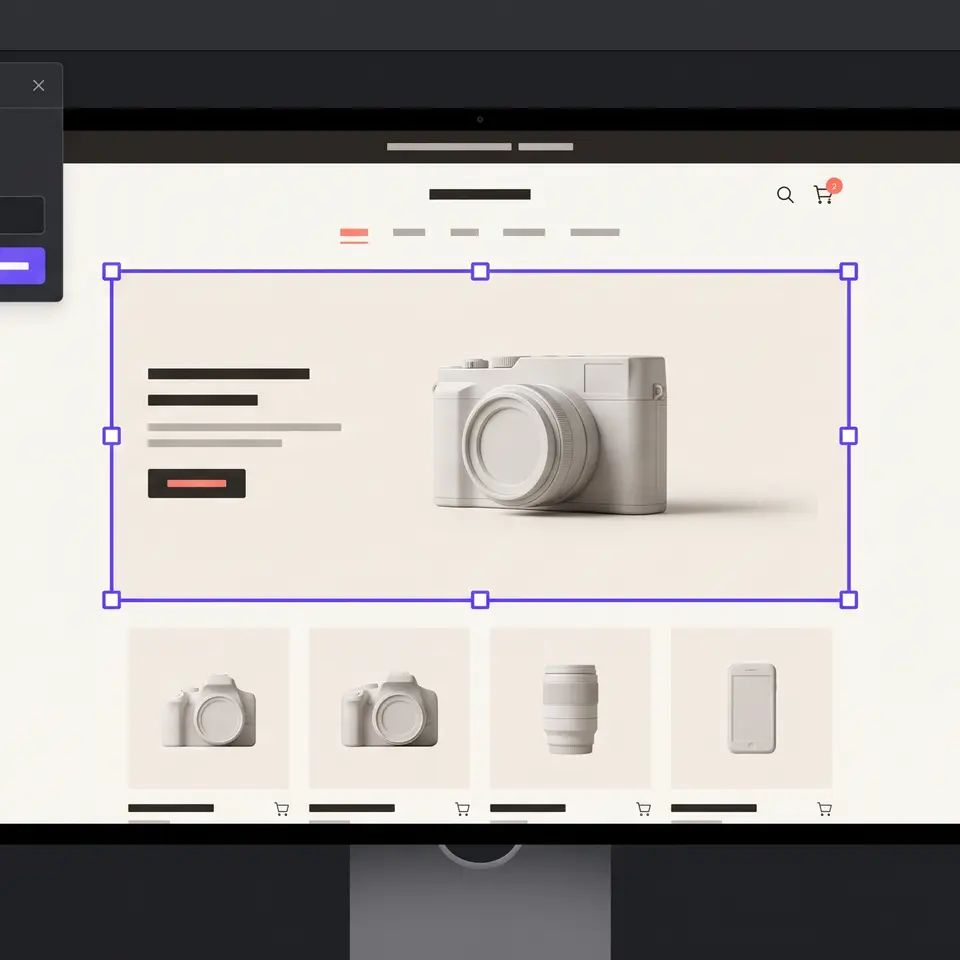
An AI website editor should make a requested storefront change understandable before it makes that change public. Runner AI works from the current store project, a focused brief, optional reference images, and the element you select. It returns source-file changes and responsive previews that you can inspect, revise, and save separately from publication.

Give the AI website editor a bounded storefront brief
Start with the page and customer action that should change. Name the current problem, the desired visible result, and the parts of the store that must remain stable. A useful request might ask Runner AI to make a collection easier to discover from the homepage while preserving the existing navigation, product data, cart path, and brand language. Add the device states and click path you want checked rather than asking for a vague improvement.
The inputs can include the current storefront files, verified catalog facts, approved copy, brand rules, a reference image, and the route or section in scope. A reference image is evidence for appearance, not a replacement for product truth. Runner still needs accurate products, prices, inventory rules, policies, destinations, and ownership boundaries when they affect the result. If a source image or example belongs to someone else, use it only with the rights and permission required for your project.
Keep one coherent outcome per request. When the first result misses the target, point to the exact section, explain the expected state, and provide a clearer reference if needed. This creates a review trail around a specific change instead of repeatedly regenerating an entire site. For a project that begins from an authorized public URL rather than an existing store section, AI website cloning covers the separate capture-to-code workflow and its rights boundaries.
Select a storefront element and preserve its code context
Runner AI’s Design Mode is for focused visual edits on the current ready storefront version. On desktop, you can open the storefront, enter Design Mode, and select a visible element. The selected element and its surrounding code context can travel with an Ask Runner AI instruction, which narrows the request to the component you actually chose. This is useful when “change this heading” or “replace this image” is clearer than describing its location from memory.
Direct controls cover supported spacing, image, text, and removal changes. The image panel can expose upload and AI-generated options for supported media elements, while text controls can adjust properties such as size, weight, family, color, opacity, and alignment. Undo and redo apply to the current unsaved Design Mode history. Because an AI request resets the selection and unsaved direct-edit history when processing starts, save pending direct edits before switching from direct controls to Ask Runner AI.
Availability depends on the project state. Design Mode can be unavailable when the latest storefront version is not ready, an older version is being previewed, another request is running, the workspace does not have the feature enabled, or a desktop layout is not in use. Regular Runner chat remains the appropriate path for work across several pages, new behavior, or broader functionality. The editor should not be presented as a universal control that bypasses project readiness or feature gates.
Review source-file changes and responsive previews
Saving a visual edit writes the pending change to the project and can record a new version snapshot when the current workflow supports it. The preview then reloads so the visible result can be checked again. Review the page in PC, tablet, and phone layouts, and trace the customer action named in the brief. A section that looks correct at one width can still clip text, hide a control, break a route, or move a product action into an awkward sequence elsewhere.
Runner also provides a conditional code editor for inspecting the storefront files behind the preview. Its Git view separates saved files, diffs, staging, commits, and pushes. That separation matters: a saved file is not automatically committed, a commit is not automatically pushed, and none of those actions publishes the storefront. Review the intended file diff and avoid grouping unrelated changes merely because they are present in the same workspace.
Use the responsive preview as evidence of the current project state, not proof of every connected system. Verify real product data, links, search, cart behavior, checkout ownership, analytics, accessibility, and public routes at the appropriate source. If the change is part of a broader rework of navigation, page hierarchy, and content, ecommerce website redesign explains how to keep the redesign tied to current-store evidence rather than a generic visual refresh.
Keep save, version review, and publication separate
An AI website editor is safer when each consequential step remains explicit. In Design Mode, direct changes can be reviewed with undo and redo before Save. After a save, the normal storefront preview shows the current result. Version history, when available for the project, gives you another way to inspect or restore earlier storefront work without treating every saved proposal as the final public answer.
Publishing is a separate decision. Before publishing, compare the result with the original brief and verify that the selected section still works with the catalog, surrounding page, device layouts, and customer path. Check any factual copy against the system that owns it. A generated description does not establish inventory, a preview does not establish payment availability, and a successful file write does not establish that every route or integration behaves correctly.
This review boundary is Runner AI’s useful distinction for commerce teams. The editor works inside the storefront project and can connect a selected element to its source context, but the operator can still inspect what changed and decide whether the result is ready. The output is not only a flattened mockup or an unexplained visual mutation. It is an editable project change with visible files and previews that support a deliberate approval process.
AI website editor FAQ
What inputs can I give Runner AI for a website edit?
Give Runner AI the current store project, the page or element in scope, the customer action you want to improve, verified catalog or content facts, and the boundaries it must preserve. You can add an approved reference image when appearance matters. In Design Mode, selecting an element can also attach that element and surrounding code context to a focused Ask Runner AI request.
Can I edit a storefront without changing code manually?
Design Mode provides direct controls for supported spacing, image, text, and element-removal changes, plus an Ask Runner AI field for selected-element requests. Broader changes can be requested in regular chat. A conditional code editor remains available for people who need to inspect or make a focused file edit, but it is not required for every visual adjustment.
Does saving an edit publish it immediately?
No. Saving updates the project workspace and reloads the current preview. Commit, push, and publication remain separate actions with their own permissions and checks. Review the affected page on desktop, tablet, and phone, inspect relevant file changes, and verify the customer path before choosing to publish the storefront.
How is this different from a generic AI website generator?
A generic generator often starts from a blank prompt and emphasizes the first complete site. Runner AI’s editing workflow can start from the current commerce project, a selected storefront element, surrounding source context, reference images, and verified store facts. The reviewable output includes changed files and responsive previews, so a focused revision can be checked without pretending that generation, saving, and publishing are the same event.
Edit a current storefront with reviewable output
Bring your current storefront, the exact page or selected element, verified catalog and brand facts, an optional reference image, and the customer action that must remain intact. Ask Runner AI for changed source files and PC, tablet, and phone previews so you can inspect the result before deciding whether to publish.
Open the AI website editor workflow in Runner AI