
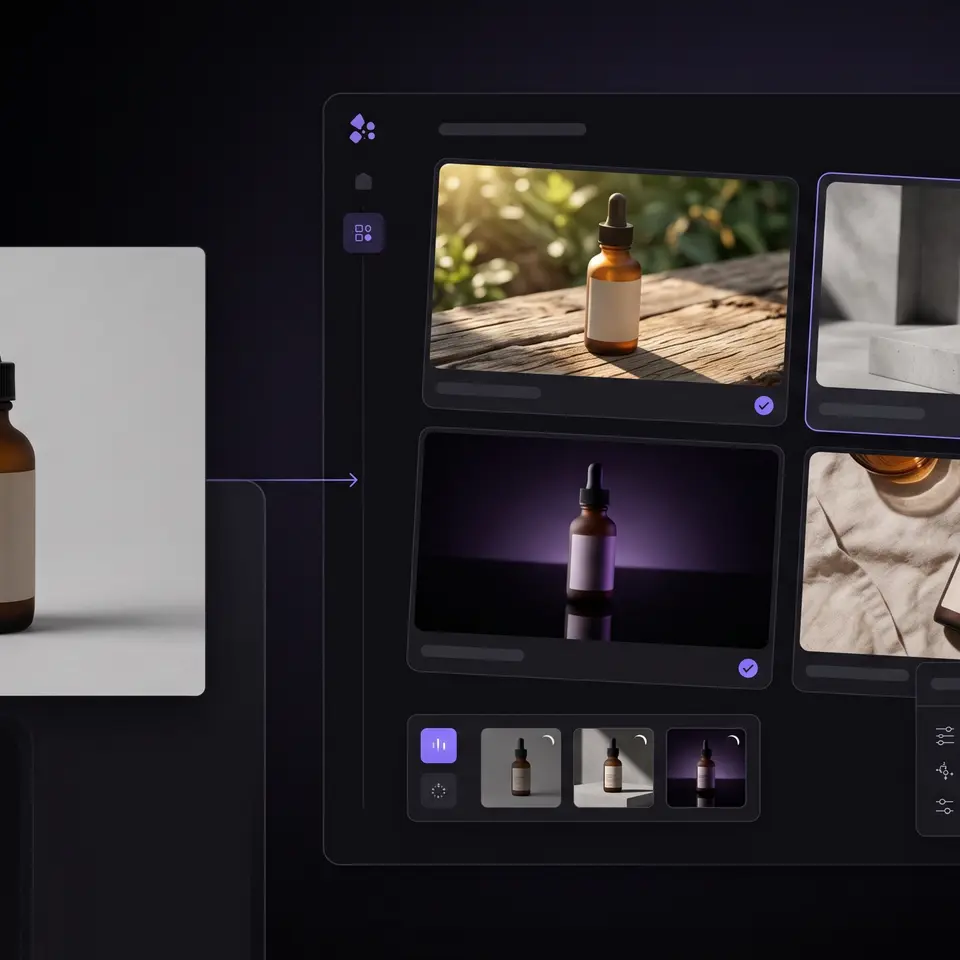
The best AI image generator for an ecommerce team should accept a clear prompt and the right product references, expose the selected model’s requirements, and return an output that can be reviewed before reuse. Runner AI puts that process inside Creative Studio, where generated media stays beside project assets, queue status, editing controls, and the store work it may support.
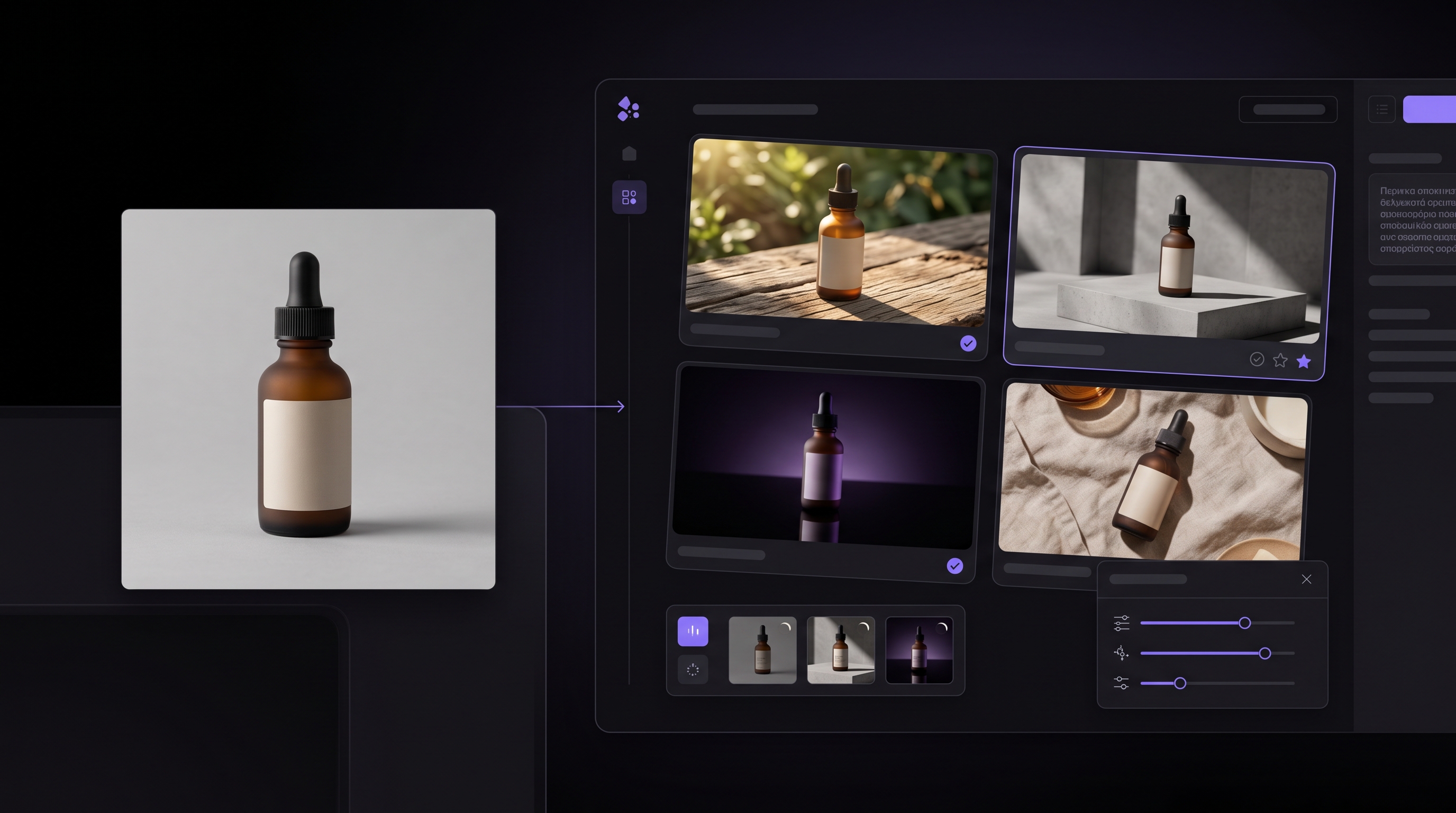
Compare the best AI image generator by the work around the model
Search results often crown one model for artistic quality, another for prompt adherence, and another for accurate text. Those distinctions are useful, but they do not settle the decision for a store team. A product image must also move through a repeatable process: select an appropriate source, state the intended change, confirm the model’s input rules, wait for the result, compare it with the product, and keep the approved asset available for later work. A striking output that disappears into a download folder can create more coordination work than a slightly less dramatic result that remains connected to the project.
Runner AI approaches the choice as a workflow rather than a permanent model ranking. Creative Studio groups available models by text-to-image, image-to-image, text-to-video, and image-to-video. The model picker shows the input and output requirements available in the current product, while the canvas holds selected images and generated results. This lets an operator choose for the job at hand instead of assuming that one model is best for every product, edit, campaign, or format.
Use a representative acceptance task when comparing options. Start with one approved product image, a factual description of the item, the intended placement, and constraints such as preserving the product shape, label, color, and material. Ask each candidate workflow to produce the same kind of result. Then judge the full path, not only the most attractive thumbnail: were the inputs clear, did the model follow the brief, could the output be inspected at useful size, and did the result remain available for another reviewer?
Test prompts, selected images, and model requirements together
Text-to-image generation is useful when the desired scene can be described without an existing source. Image-to-image work is different: the selected image carries product appearance and composition that the prompt alone cannot reliably reconstruct. Runner Creative Studio supports both starting points. An operator can write a prompt with no canvas selection for supported text-to-image work, or add a source image to the canvas, select it, and choose an image-to-image model whose requirements match the task.
The prompt should separate the requested change from facts that must stay fixed. For example, “Place this approved amber bottle on a pale stone surface with soft morning light; preserve the bottle shape, blank label area, cap color, and proportions” gives a reviewer a clearer standard than “make a premium product photo.” If the product name, label copy, dimensions, or material matters, verify those facts against the product record rather than asking the generator to invent them. Generated media is a draft, not evidence that an item actually has the depicted properties.
Input count matters too. Some workflows require one selected image, some allow more than one, and text-only modes expect no selected media. Runner exposes selection-aware controls and keeps unavailable actions disabled until their requirements are met. That behavior is part of a useful comparison because it prevents an operator from starting a job with an accidental or incompatible selection. The AI product photography for ecommerce workflow covers the adjacent task of turning approved catalog and campaign context into product-visual direction.
Review generated output on a canvas before reuse
Generation success means that a provider returned media. It does not mean the media is accurate, on-brand, or ready for a product page. Runner’s Generations panel distinguishes running, completed, failed, and interrupted work, so the operator can see whether a result exists before evaluating it. After a successful generation, the output appears on the Creative Studio canvas and saves to the project’s Media Library. The original can remain on the canvas for comparison instead of being overwritten by default.
Review the details shoppers may treat as factual. Check product shape, color, materials, included accessories, label text, scale, reflections, shadows, and any person or environment in the scene. Also inspect the intended crop. An image that looks convincing as a large canvas preview may fail when reduced to a collection card or placed behind text. If the result is only a creative direction, label it that way and keep it out of a live product record until the appropriate owner confirms it.
Creative Studio provides explicit actions for supported selections, including crop, combine, background work, relighting, material concepts, upscale, download, and other product tools when available. One selected image can also be assigned through the product-thumbnail flow after review. These actions make the canvas useful as a decision surface, but they do not remove the need for approval. For motion work based on stills or existing clips, AI video editing in Runner AI explains the corresponding source-preserving review path.
Keep approved media connected to products and campaigns
The strongest Runner AI differentiator for this query is continuity. A store team rarely generates an image only to admire it. The asset may need to support a product detail page, a collection card, an email, a social post, or an ad concept. Successful Creative Studio generations save to the Media Library, and the asset tray can bring available project media back onto the canvas. Removing an item from the canvas does not delete its saved Media Library asset, which lets teams clear a working surface without pretending that the source or result never existed.
That continuity also supports more disciplined iteration. A reviewer can keep the approved source, compare a new result, make a supported edit, and return later to the saved output. When an image is suitable for a product, the product-thumbnail action creates an explicit handoff rather than silently changing the catalog during generation. When it is intended for paid creative, the AI ecommerce ad creative generator provides the adjacent process for checking the product, offer, destination, and campaign claim before distribution.
Do not choose an image workflow on model names alone. Confirm current access, funding labels, supported input types, output constraints, and project controls in the product before committing to a production process. Model availability can change, and different jobs can justify different choices. The durable evaluation question is whether the team can supply accurate inputs, understand what ran, inspect the result, preserve the source, and reuse approved media without losing its store context.
Use my approved product image, factual product details, placement goal, and creative prompt as inputs. Compare suitable image-generation models, then return reviewable image options on the project canvas with the source preserved. Save successful outputs to project media, identify details I must verify, and do not publish or change a product until I approve the result.
Compare image-generation options in Runner AI
Best AI image generator FAQ
What should ecommerce teams compare in an AI image generator?
Compare prompt adherence, product fidelity, supported source-image inputs, model requirements, queue visibility, editing controls, saved-media behavior, and the path to product or campaign reuse. Price and raw image quality matter, but they do not show whether another operator can reconstruct the job or review the result. Use the same approved product reference and acceptance criteria for each option, then inspect the output before treating it as product evidence.
Can Runner AI generate and edit product images?
Runner AI Creative Studio supports prompt-based image generation and image-to-image work with selected canvas media when the chosen model and current access allow it. Supported image selections can also expose product tools such as background changes, relighting, material concepts, or upscale. Check the model picker and selection requirements before each run because models do not all accept the same inputs or return the same output type.
Where do completed Runner AI images go?
After a supported generation succeeds, the output appears on the Creative Studio canvas and saves to the project’s Media Library. The Generations panel shows the job state while it runs. The asset tray can place available project media back on the canvas later, and removing a canvas item does not delete its saved asset. Review product accuracy, crop, text, and brand fit before download or reuse.
Does Runner AI publish generated images automatically?
No. Generation produces reviewable media, not publication approval. An operator can compare the source and result on the canvas, keep successful output in project media, and use an explicit product-thumbnail handoff when appropriate. Storefront or campaign use still requires the responsible person to verify product facts, rights, brand fit, and destination context. The best AI image generator is the one your team can review safely, not the one that skips review.