
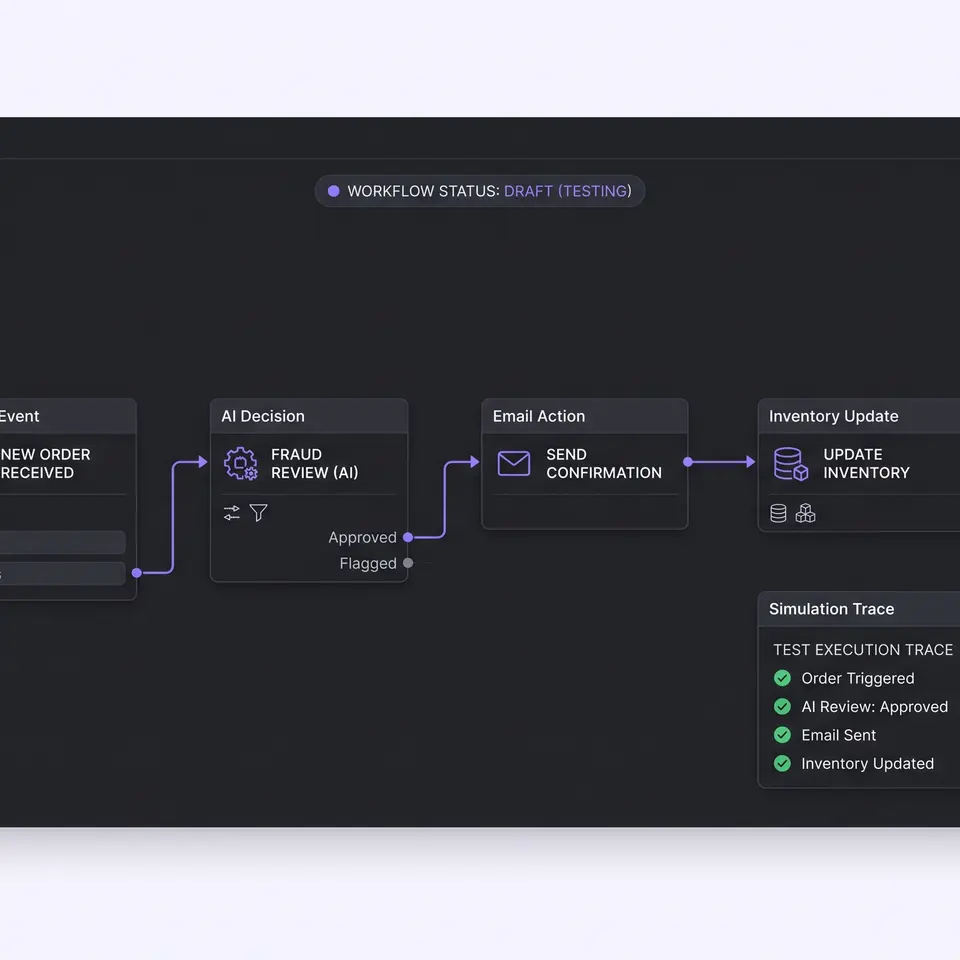
A visual workflow automation tool in Runner AI lets an ecommerce operator arrange connected steps, supply store-event or manual inputs, and simulate the draft before making it live. Each test produces a reviewable run with node-level results and traces, so the team can inspect what received data, what changed it, and where a flow stopped instead of trusting an unseen automation.
Evaluate a visual workflow automation tool by its review path
A visual canvas is useful only when it makes the operating logic easier to inspect. Runner AI keeps each workflow inside the store project and represents the process as connected nodes, inputs, and outputs. An operator can start with a blank workflow or choose an available template, then shape the flow around a real store task. The same workspace distinguishes draft changes from deployed versions and shows whether a workflow is live, paused, blocked, scheduled, running, completed, or failed.
That state model gives reviewers a practical question to ask at every stage: what is configured now, and what would run in production? A diagram that cannot execute is only documentation, while an automation that hides its branches is difficult to approve. Runner’s builder connects the visual model to simulation and run history. It is designed for teams that want to see the flow, test its inputs, and review its observed result before they rely on the automation.
Build from a template or a blank store workflow
The starting point should match the job. A blank workflow gives the operator direct control over the nodes and connections. An available template can provide a known structure that the team adapts to its own project. In both cases, the useful inputs are specific: name the store event or manual trigger, identify the data each step needs, define the expected transformation or action, and decide what evidence will prove that the test behaved correctly.
For example, an order event can carry a sample order identifier into a decision step, then continue to an email action or an inventory-related action. The exact nodes available depend on the current workflow catalog and connected project services, so the page does not promise a universal integration list. The review principle stays constant: keep the event data visible, connect only the steps the store needs, and save draft changes before treating the canvas as the version under test.
For campaign work that begins with products, audience, and approval boundaries rather than an event graph, marketing campaign management software for ecommerce covers the adjacent planning workflow. The visual workflow page owns the narrower evaluation task of building and testing executable node connections.
Simulate store events before deployment
Runner AI supports workflow simulation with direct inputs and event payloads. A team can supply sample values for input nodes or open the simulation dialog for an event such as order.created, review the sample payload, and replace it with the test data needed for the scenario. The simulation does not cache production results, and the builder saves pending canvas changes before starting the run. If that save fails, the run should not be treated as proof for an older or partially saved graph.
This separation matters for ecommerce operations because a plausible canvas can still contain the wrong field, branch, or action order. A test payload lets the reviewer ask whether an order identifier reached the intended node, whether a decision used the expected value, and whether later steps received the result. It also keeps simulation distinct from deployment. Running a draft with sample data is a verification step; it does not authorize the workflow to process live store events.
Inspect node results, traces, and workflow states
A reviewable run should show more than a final success badge. Runner’s run history can distinguish test and live activity, show simulation progress, and expose the result associated with individual nodes. Simulation traces identify what the test did, including steps that were skipped rather than executed against an external service. When a run fails, the trace and node result provide a smaller investigation surface than replaying an opaque end-to-end process.
Operators can then return to the draft, change the relevant node or input, save it, and run another simulation. The workflow list supports search and status filtering, so drafts, live flows, paused bindings, completed runs, and failures do not have to share one undifferentiated queue. Bulk controls exist for management tasks, but review should remain scoped: confirm which production triggers are active before pausing or deleting anything, and do not infer that one successful sample covers every real payload.
If the workflow includes a customer-facing campaign email, use the AI email generator for ecommerce campaigns to review the subject, preheader, structured body, and saved preview as a separate artifact. The workflow trace can show that an email step ran; the email preview owns the content review.
Choose the tool around the store event you need to verify
Generic automation comparisons often lead with connector counts, hosting models, or broad claims about saved time. Those criteria can matter, but an ecommerce operator also needs to know whether a proposed flow can be tested with representative store data before it is made live. Start the evaluation with one bounded event and one observable outcome. Define the payload, connect the minimum nodes, simulate it, and inspect each result against the expected path.
Use the visual canvas to make branches understandable, not to maximize their number. Use templates to reduce setup only when their logic matches the store task. Use run history to compare what actually happened with what the draft implies. Keep deployment as a separate decision after the simulation evidence is reviewed. This build-test-review sequence is Runner AI’s specific answer to visual workflow automation: the canvas, event payload, saved draft, and trace remain connected inside the same store project.
Build a visual ecommerce workflow from my store event, sample payload, required decision rules, and intended actions. Keep it as a draft, run a simulation with the sample data, and return the node-by-node results and execution trace for review before deployment.
Open the visual workflow builder in Runner AI
Visual workflow automation tool FAQ
What inputs should I provide to build a visual workflow?
Provide the store event or manual trigger, a representative sample payload, the decisions the workflow must make, and the actions that should follow each branch. Name the expected result for every important node. Avoid real customer secrets in test data; use a safe sample that preserves the required field shape and lets a reviewer verify the route.
Can I test an event-driven workflow before making it live?
Yes. Runner’s workflow builder can simulate direct inputs or an event payload and record a test run. The draft should be saved before the simulation starts, and the resulting node outputs and trace should be compared with the expected path. A passing sample is evidence for that scenario, not permission to deploy or proof that every production payload will pass.
What can I review after a workflow simulation?
Review the run status, the input supplied to the test, the result associated with each node, and the execution trace. Check whether any action was intentionally skipped during simulation and whether a failed node received the expected data. Use those observations to revise the smallest relevant part of the draft, then save and simulate again.
Does Runner AI deploy a workflow after it generates the graph?
No. Building or simulating the graph is separate from activating a production binding. Runner distinguishes draft changes and deployed versions, and the workflow list shows states such as live, paused, blocked, scheduled, running, completed, failed, and draft. Review active triggers and the latest saved simulation evidence before choosing a supported deployment action.
Is a visual workflow the same as an email campaign draft?
No. A visual workflow defines connected triggers, decisions, and actions. An email campaign draft is a customer-facing content artifact with its own subject, preheader, body, preview, audience, and delivery review. A workflow can include an email action, but the run trace does not replace review of the saved email itself.