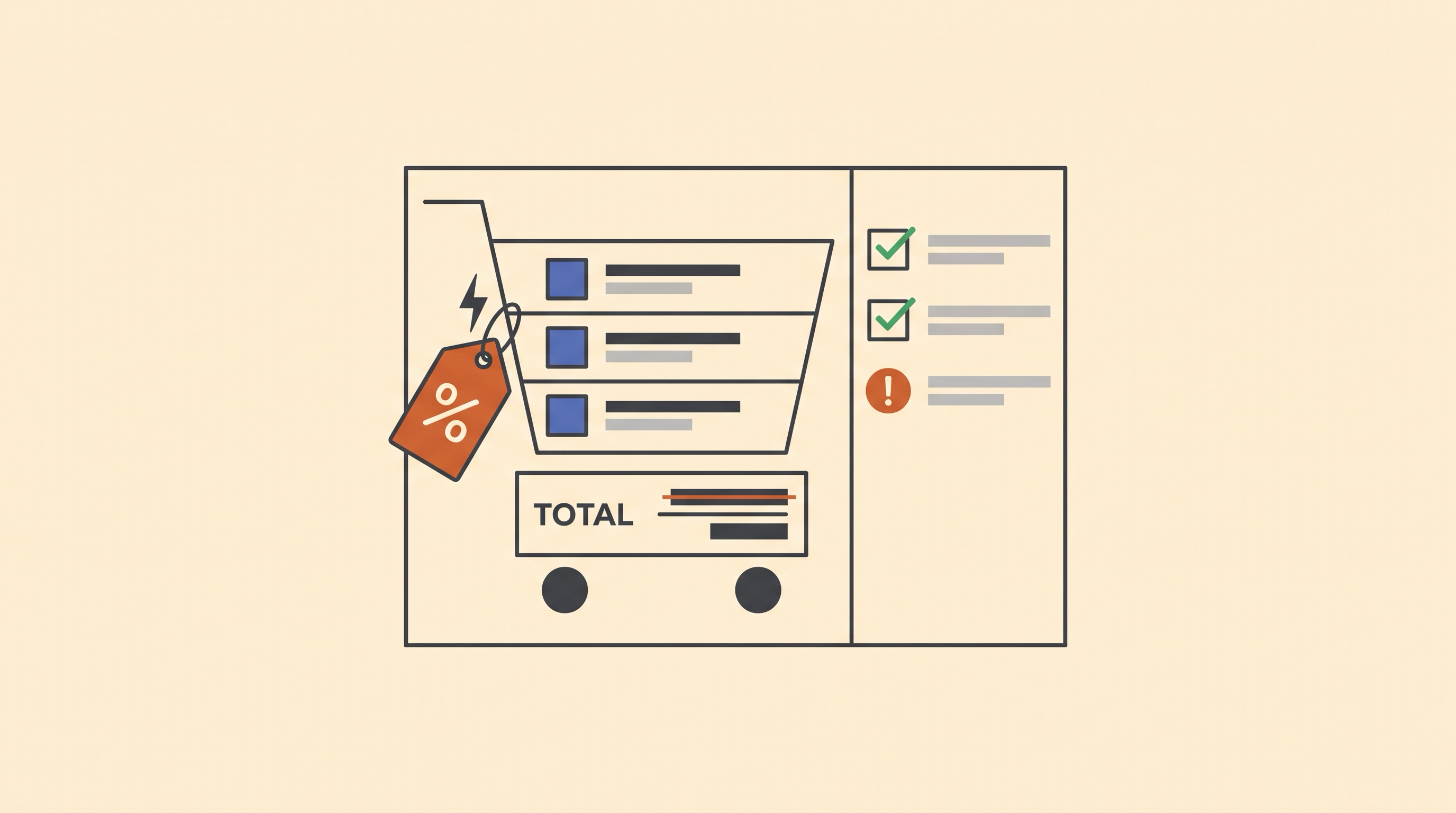
A Shopify automatic discount applies in the cart and at checkout when the customer and basket meet its rules, without asking the shopper to enter a code. The hard part is deciding exactly which baskets qualify. Before announcing an offer, test the threshold, excluded items, and conflicts with other discounts, rather than treating a saved rule as proof that the promotion works.
Disclosure: Runner AI publishes this guide. Shopify rules below come from Shopify’s documentation; the Runner section describes a separate product workflow.
Choose the offer before the discount method
Automatic discounts and discount codes answer different questions. The offer defines what the customer receives. The method defines how that offer is applied. A percentage reduction, fixed amount, free shipping offer, or Buy X Get Y promotion still needs eligibility rules even when nobody types a code.
Shopify’s automatic discount guide says customers must add all eligible items to their cart. For Buy X Get Y, that includes both the items needed to qualify and the items they receive. “Automatic” does not mean a gift appears in the cart by itself.
Choose an automatic method when the intended customer should receive the offer whenever the qualifying basket is present. A code can fit an offer distributed through a particular campaign, but possession of the code is not a substitute for customer restrictions. Review the eligibility settings either way.
Write the offer in plain language first. For example, “Take $1 off each eligible item when the basket contains at least two eligible items” is different from “Take $2 off each complete pair.” They produce different prices when a customer buys three items.
Test the Shopify automatic discount at its boundaries
A Shopify Community collection-discount thread documents that exact distinction. A merchant wanted two $15 items to cost $28, with the saving repeating for pairs. The suggested minimum-quantity rule worked for two items, but the merchant reported that it also discounted the third. The form could save a valid rule that did not match the intended offer.
The arithmetic below is an illustrative test specification, not a measured checkout result. Assume every item costs $15, all items are eligible, and tax, shipping, and other discounts are excluded. The threshold rule takes $1 off every item once quantity reaches two; the pair rule takes $2 off each complete pair.
| Items | Threshold rule | Pair rule |
|---|---|---|
| 1 | $15 | $15 |
| 2 | $28 | $28 |
| 3 | $42 | $43 |
| 4 | $56 | $56 |
Testing only two and four items would miss the difference. We recommend testing the first basket that qualifies and its immediate neighbors before widening a promotion. If the offer is intentionally “two or more,” the third item’s discount is correct. If it is “complete pairs only,” use a rule implementation that explicitly supports that behavior and verify it.
Use a small test table for the actual offer. Replace the examples below with your products, currency, customer restrictions, and expected totals.
| Case | Check |
|---|---|
| Just below the minimum | No saving appears before the basket qualifies |
| Exactly at the minimum | The intended amount applies to the intended items |
| One item above the minimum | Extra items follow the rule you advertised |
| Eligible items mixed with excluded items | Excluded items do not receive unintended savings |
| Customer outside the intended audience | The discount does not apply solely because the basket qualifies |
| Qualifying basket with another active offer | The selected discount or combination matches the settings |
| Cart changed after a discount appears | Removing an item recalculates eligibility and the total |
Record the expected saving before opening checkout. Then compare the displayed item prices, subtotal, discount, shipping, and final total. A sale banner is not evidence of the calculation.
Diagnose code conflicts before adding an app
An automatic discount does not necessarily prevent customers from using a code. Shopify’s combination rules allow automatic discounts and codes to combine when each discount permits the other discount’s class and the store meets the relevant requirements. Product, order, and shipping discounts are distinct classes.
When eligible discounts cannot combine, Shopify selects the best discount or combination for the cart. That can explain why a code seems to replace an automatic offer. Inspect both rules before assuming that checkout is broken or that another app is needed.
For a worked example, start with a $100 product subtotal. If an eligible $20 product discount combines with a 10% order discount, the product discount reduces the subtotal to $80 first. The order discount then removes $8, leaving $72 before shipping and tax. This follows Shopify’s documented product-before-order calculation. Two percentage order discounts have different calculation rules, so do not reuse that formula for every combination.
Check the active offers, each rule’s combination settings, and the exact products in the cart. If the intended combination is unavailable, consult the eligibility requirements in Shopify’s guide. Shopify’s discount types reference identifies app-based options for more complex requirements. Choose one only after identifying the rule the native configuration cannot express.
Keep the same checks when preparing an offer in Runner
Runner’s promotion form also separates the discount method from its value and status. The Runner Promotions guide documents Automatic discount and Discount code, plus Draft and Active states. It shows the configuration controls and a recorded entry into Promotions; it does not demonstrate a successful discounted checkout.
One difference can surprise someone coming from another platform. Runner’s form requires a code value for both methods. With an automatic discount, customers do not enter that internal code. The presence of a Code field therefore does not, by itself, tell you what the shopper must do.
Keep the offer in Draft while reviewing its value and customer conditions. Follow the guide for setup and activation, then verify the intended checkout behavior in the store’s appropriate test environment. Availability requires a ready store backend, and amount-based or shipping offers need the relevant currency and shipping setup.
Do not assume Shopify’s combination rules, collection targeting, or quantity behavior carry over unchanged. If you are evaluating a move, bring the expected-cart table with you and confirm each requirement in the destination store. Runner’s promotion management feature covers preparing reviewable offer work; its existence does not prove that a particular checkout rule has passed.
For a payment-safe test plan on Shopify, use the Shopify test order guide. For Runner configuration, use the Promotions guide rather than copying Shopify’s menu steps.
Shopify automatic discount FAQ
Does an automatic discount need a customer-entered code?
No. Shopify evaluates the automatic rule when the basket and customer qualify. That differs from a shopper entering a discount code, even if another tool can prefill a code. Runner likewise distinguishes the two methods, but its automatic promotion form still requires an internal code value. Do not present that identifier as something the customer must type.
Can an automatic discount and a discount code apply together?
Yes, in Shopify when both discounts allow the relevant combination and the store and cart qualify. Review the class settings on each rule, not just the automatic discount. If they cannot combine, Shopify selects the best eligible discount or combination. Recheck this behavior on another platform instead of treating Shopify’s rules as universal.
Why does the discount apply to an extra item?
A minimum quantity can make every eligible item qualify once the threshold is met. That is different from applying a benefit only to complete pairs or sets. Test an odd quantity, inspect the scope and quantity conditions, and compare the result with your advertised terms. The community example above shows why a successful two-item test is not enough.
Do I need to complete a payment to check the saving?
Not for an initial display check. Shopify’s combination guide says you can add products, proceed to checkout, inspect the discounts, and stop before payment. Use an appropriate test order when you also need to verify the completed order. Check exclusions and customer restrictions in the same pass. Do not announce a Shopify automatic discount until the tested totals match the offer.