Migrate from Shopify
Copy products, customers, inventory, shipping, and discounts from a Shopify store into your Runner store in one read-only import.
What this covers: You will copy your Shopify store’s data into an existing Runner store, check the result, and import again when something needs a fix.
Store Migration is a one-time, read-only copy. Runner reads your Shopify store and writes what it finds into your Runner store. Nothing in Shopify changes, and your Shopify store keeps selling while the import runs.
Why and when to migrate
Use migration when you are moving your store to Runner and want to start from your existing catalog, customers, and settings instead of entering them again.
Migration is different from Connect a Shopify store. Connecting keeps Shopify as the store system, so checkout stays in Shopify. Migration copies the data once into a Runner store, which then runs on its own. Runner does not keep the two stores in sync after the import.
Availability and prerequisites
- Migration must be available for your workspace.
- You need the owner or admin role in the workspace. Other members do not see the entry, and Runner refuses the import with
Only a store owner or administrator can change or start a migration. - Import into a Runner store, not a project that is connected to Shopify. Create a Runner store first if you do not have one.
- Wait until the store has finished setting up. Until then, Runner shows
Your store is still being prepared. Uploads will be available automatically when setup finishes.and keeps Continue unavailable. - For Connect Shopify, you need a Shopify account in the organization that owns the store, with permission to develop apps and install them on that store.
- For Upload CSV exports, you need access to export products, customers, and discounts from the Shopify admin.
- A store runs one import at a time.
Open the migration
Entry path: Open the project → top bar → Migration
On a phone, select the two-arrow icon in the top bar, or Move from Shopify in an empty chat.
While an import is running, the button reads Importing from Shopify with the percentage done. For 24 hours after an import ends, it reads Import done · See report or Import needs you. Selecting it reopens the import where you left it: a running import opens on its progress, and a finished one opens on its report.
Choose how Runner reads your store
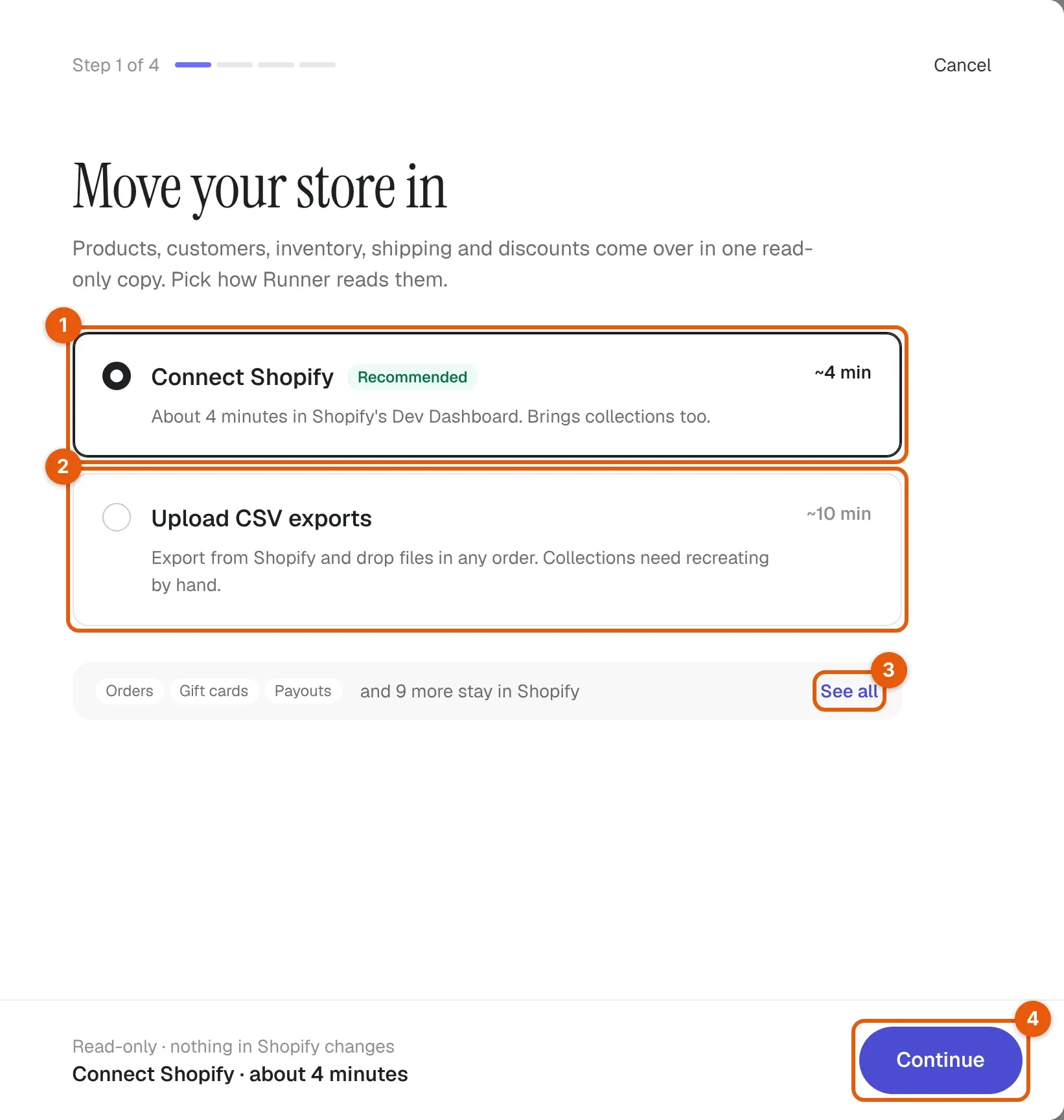
English callouts highlight the controls. Select the image to enlarge it.
| Control | Why you use it | What happens when selected |
|---|---|---|
| Connect Shopify (1) | Read the store directly through an app you create in Shopify. Brings collections too. About 4 minutes. | Selects the method. Continue opens Connect your Shopify store. |
| Upload CSV exports (2) | Use files you export from the Shopify admin when you cannot create an app. Collections need recreating by hand. About 10 minutes. | Selects the method. Continue opens Drop in your exports. |
| See all (3) | Check what the import leaves in Shopify before you start | Opens What stays in Shopify. |
| Continue (4) | Go to the next step | Opens the step for the selected method. Nothing is imported yet. |
| Cancel | Leave without starting | Closes the dialog. |
Choose Connect Shopify when you can. It reads more of your store than the exports do, and you can repeat it later without exporting files again.
What moves and what stays in Shopify
The import runs in stages, in this order:
| Stage | What Runner copies |
|---|---|
| Products, variants and collections | Products with their variants, options, prices, and photos. Collections come over with Connect Shopify only. |
| Customers | Customers who have an email address. |
| Locations | Your store locations. |
| Inventory levels | Stock for each variant at each location. |
| Shipping zones and rates | Shipping zones and their rates. |
| Discounts | Discount codes and their usage limits. |
Product photos stay on Shopify’s image addresses; Runner links to them and does not copy the files. After the products stage, Runner checks the links and lists any photo that does not open. Contact Runner support before you close your Shopify store so your product photos stay available.
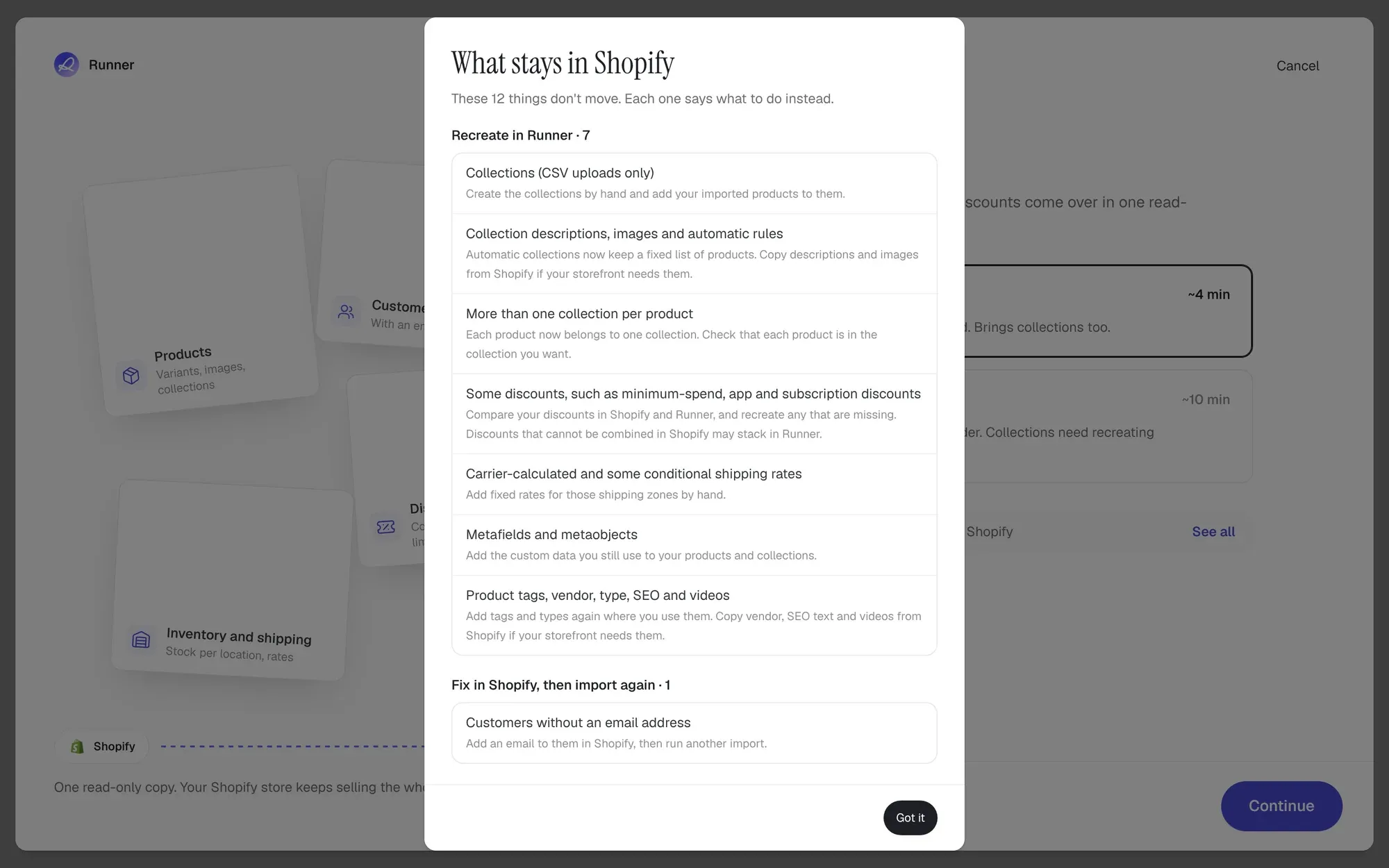
What stays in Shopify lists each thing the import does not move and what to do instead:
| Group | Items | What to do |
|---|---|---|
| Keep in Shopify | Orders and order history; gift cards and their balances; payouts, transactions, and other financial history; customer tags, notes, and email marketing consent | Export the records you need from Shopify. Note the gift card balances customers still hold, and ask customers to subscribe again before you send them marketing email. |
| Recreate in Runner | Collections (CSV uploads only); collection descriptions, images, and automatic rules; more than one collection per product; some discounts, such as minimum-spend, app, and subscription discounts; carrier-calculated and some conditional shipping rates; metafields and metaobjects; product tags, vendor, type, SEO, and videos | Recreate them in Store Operations, or ask Runner in chat. Automatic collections arrive as a fixed list of products, and each product belongs to one collection. |
| Fix in Shopify, then import again | Customers without an email address | Add an email to them in Shopify, then run another import. |
Runner never turns on an approximate discount or shipping rule. A rule that would not work the same way in Runner is skipped and listed in the report, so compare your discounts and shipping rates after the import.
Connect Shopify
Connect your Shopify store has four steps. Mark each one done as you finish it in Shopify; the steps after it unlock in order. Keep the Runner tab open while you work in Shopify.
Step 1: Find your store
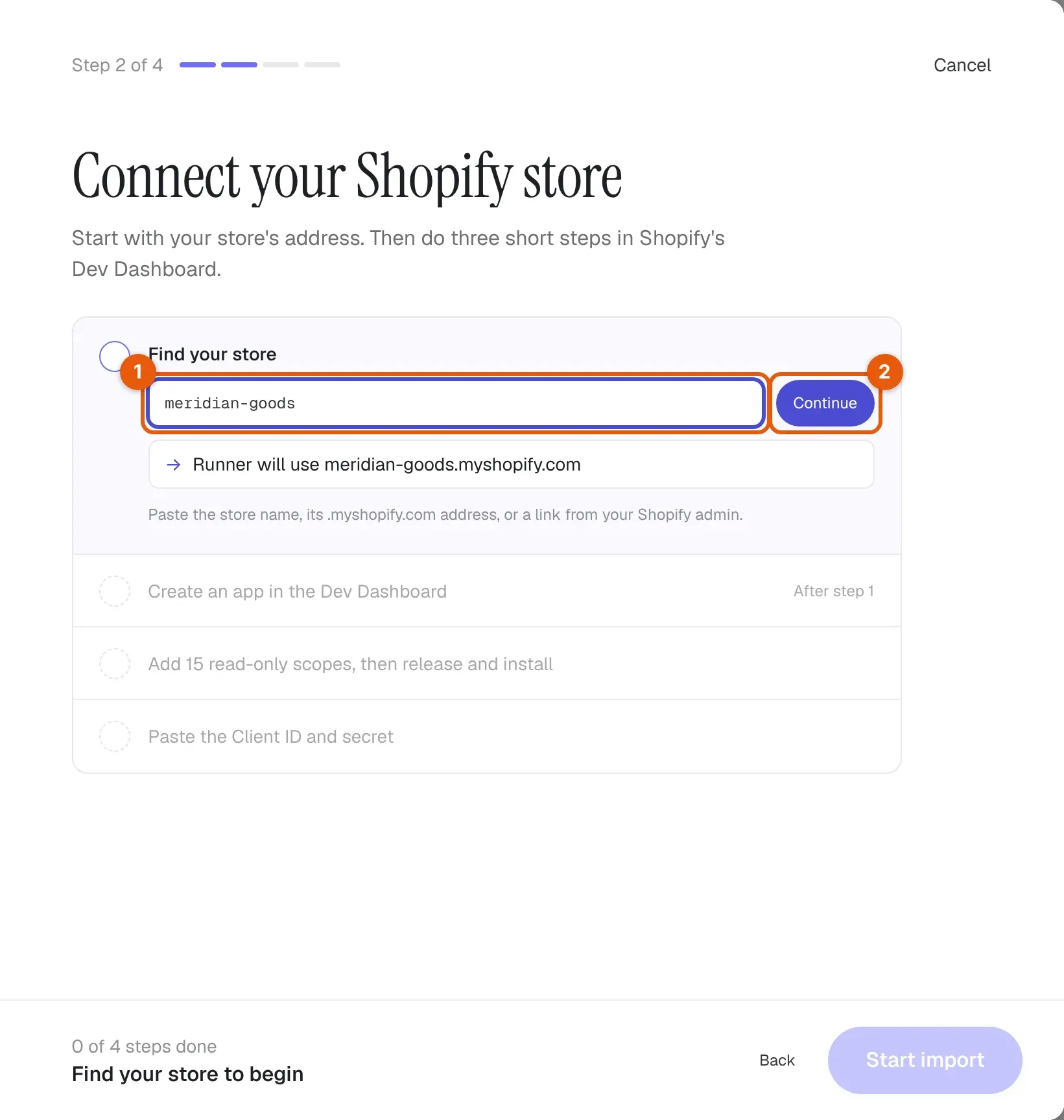
- In Find your store (1), paste the store name, its
.myshopify.comaddress, or a link from your Shopify admin. Runner shows the address it will use, such asRunner will use meridian-goods.myshopify.com. - Select Continue (2).
You can also enter your own domain, such as meridian-goods.com. Runner looks up its .myshopify.com address when you continue. Once Runner finds the store, the heading changes to Connect followed by the store name. Select Change next to the address to use a different store; Runner discards the draft, and nothing in Shopify changes.
Step 2: Create an app in the Dev Dashboard
- Select Open Dev Dashboard. Sign in with a merchant account from the same Shopify organization that owns the store.
- Open Apps, choose Create app, then Create app manually. Give the app any name. You do not need the Shopify CLI.
- Return to Runner and select I created the app.
An app owned by another Shopify organization cannot be used. The links Shopify setup guide, Required user access, and Same-organization requirement open Shopify’s own instructions.
Step 3: Add the read-only scopes, then release and install
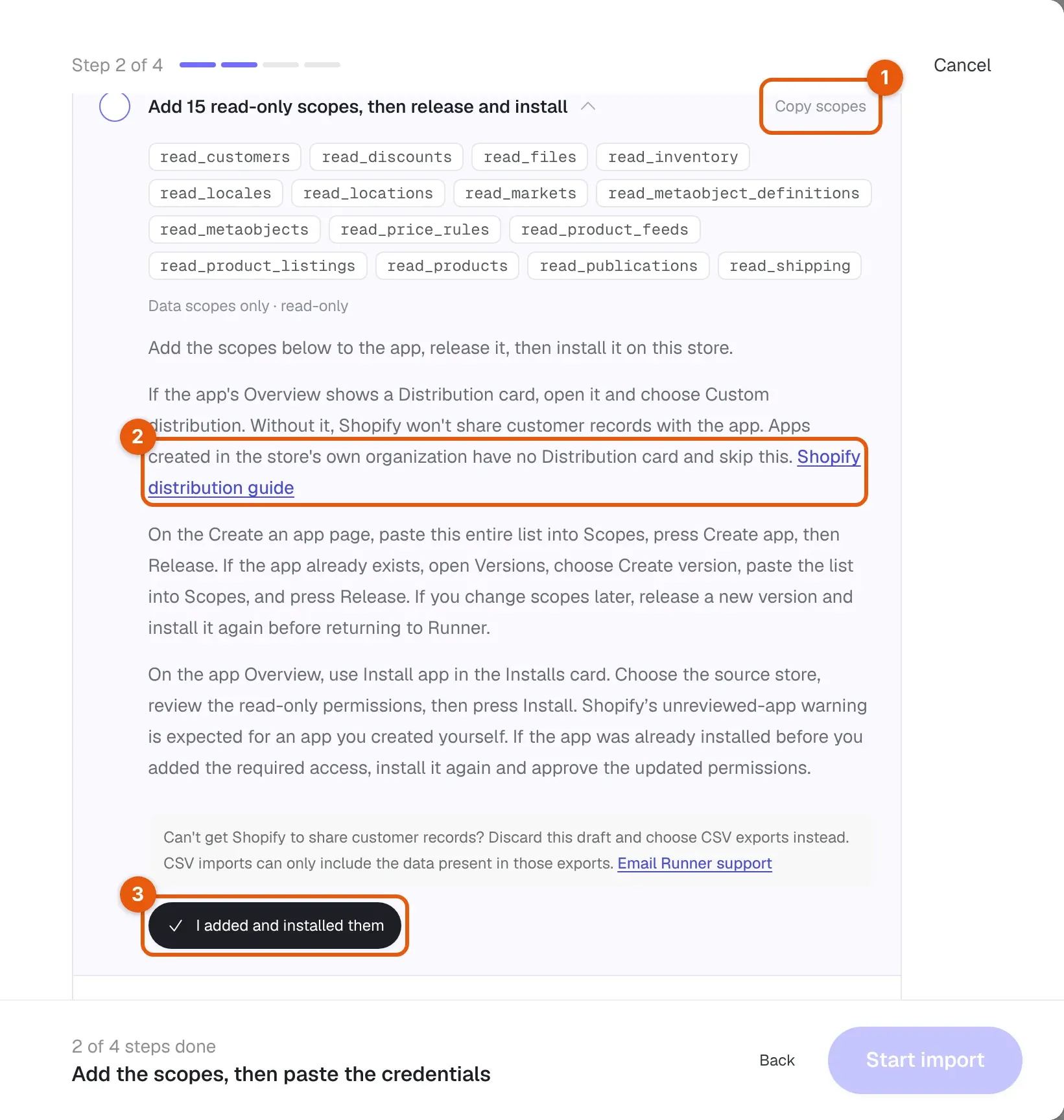
- Select Copy scopes (1). Runner copies all 15 scopes as one comma-separated list.
- In Shopify, on the Create an app page, paste the whole list into Scopes, select Create app, then Release. If the app already exists, open Versions, choose Create version, paste the list into Scopes, and select Release.
- If the app’s Overview shows a Distribution card, open it and choose Custom distribution. Without it, Shopify won’t share customer records with the app. Apps created in the store’s own organization have no Distribution card and skip this. Shopify distribution guide (2) opens Shopify’s instructions.
- On the app’s Overview, use Install app in the Installs card. Choose the store, review the read-only permissions, then select Install. Shopify warns that the app is unreviewed; that is expected for an app you created yourself.
- Return to Runner and select I added and installed them (3).
The scopes are read-only. Runner asks for exactly these:
read_customers,read_discounts,read_files,read_inventory,read_locales,read_locations,read_markets,read_metaobject_definitions,read_metaobjects,read_price_rules,read_product_feeds,read_product_listings,read_products,read_publications,read_shippingIf you change scopes later, release a new version and install the app again before you return to Runner.
Step 4: Paste the Client ID and secret
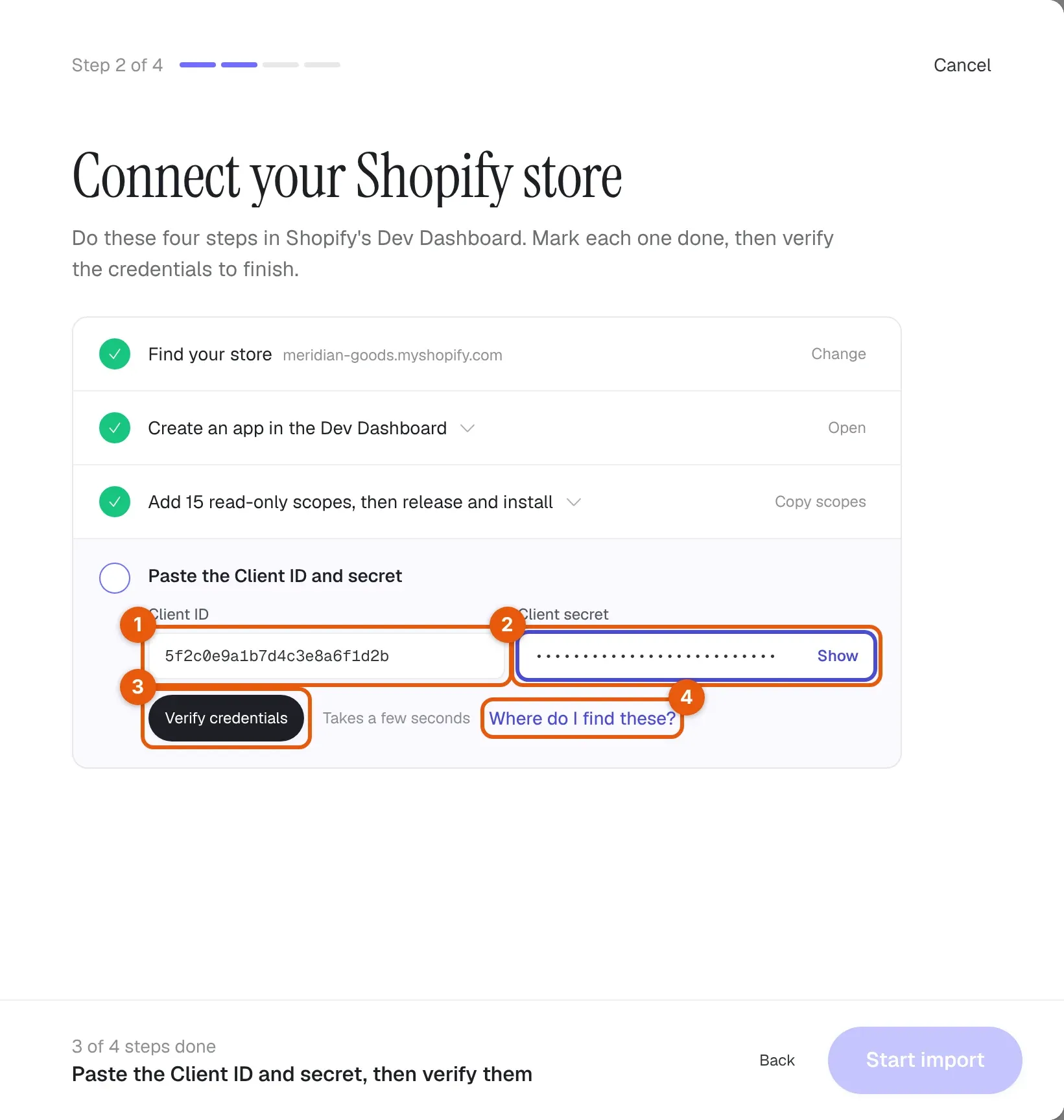
- In the Dev Dashboard, open Apps, then the app you made for Runner.
- Select Settings, then Credentials. Copy the Client ID, then select Reveal next to the secret and copy it too.
- In Runner, paste them into Client ID (1) and Client secret (2).
- Select Verify credentials (3). The check takes a few seconds.
The secret starts with shpss_. A value that starts with shpat_ is an access token, not the secret. If you paste the two values into the wrong fields, Runner offers Switch them. Where do I find these? (4) repeats these steps beside the form.
Runner encrypts verified credentials and reuses them for later imports from the same store, so you paste them only once. Select Replace credentials to use different ones.
Start the import
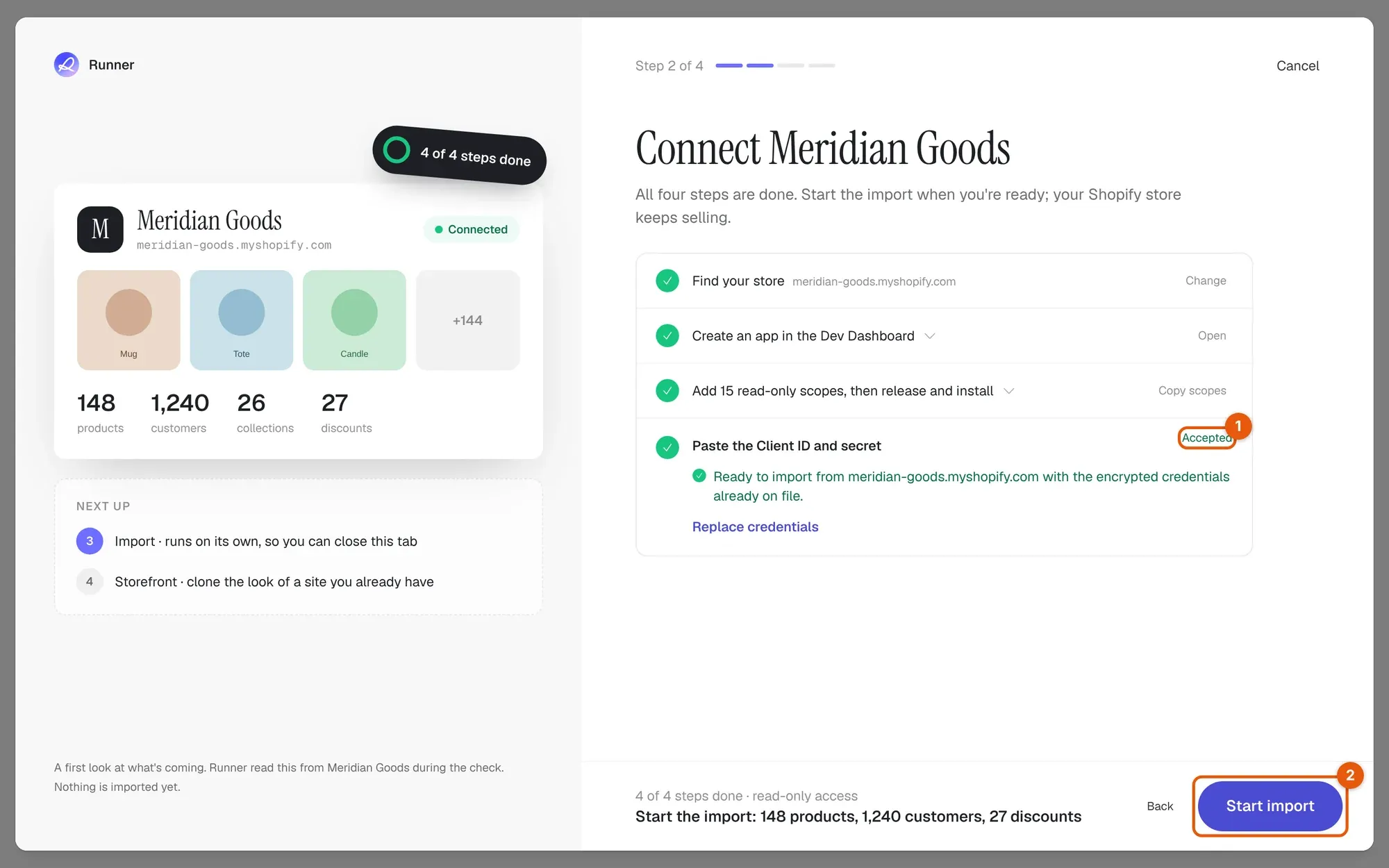
When the credentials are accepted (1), the left panel shows a first look at what Runner read from your store: product photos and the number of products, customers, collections, and discounts. Nothing is imported yet.
Select Start import (2). The footer summarizes what will come over, such as Start the import: 148 products, 1,240 customers, 27 discounts.
If Shopify accepts the credentials but the app is missing the shipping or discount scopes, Runner shows Missing: with the scopes it lacks. Add them and select Check again, or select Import without them to skip only those stages. Any other missing scope blocks the import until you add it.
Upload CSV exports
Use this method when you cannot create an app in Shopify. CSV exports carry less than Connect Shopify: collections never come from them, and the import can only include what is in the files.
Export the files from Shopify
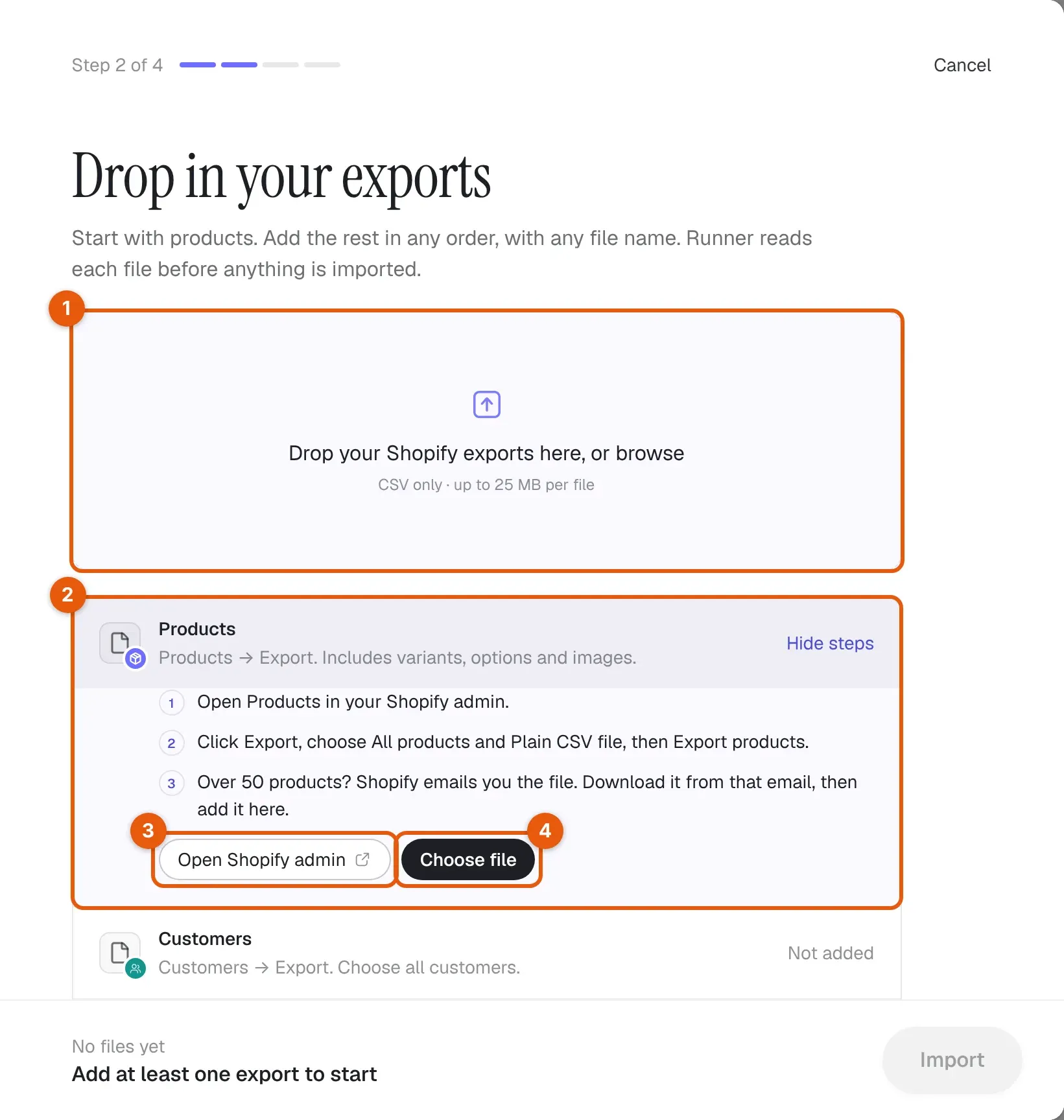
Where each file comes from lists the exports. Select one to show its steps (2), then use Open Shopify admin (3) to export it and Choose file (4) to add it. You can also drop files on the drop zone (1).
| Export | In the Shopify admin | Required |
|---|---|---|
| Products | Products → Export, choose All products and Plain CSV file, then Export products. Over 50 products, Shopify emails you the file. | Start with this one |
| Customers | Customers → Export, choose All customers and Plain CSV file, then Export customers. | Recommended |
| Discount codes | Discounts → Export, choose All discounts, then Export discounts. | Recommended |
| Inventory | Products → Inventory → Export. | Optional |
| Locations and shipping rates | Shopify has no built-in export for these. Add them if an app made the CSV for you. | Optional |
Add files in any order and with any file name. Runner accepts CSV only, up to 25 MB and 500,000 rows per file. Split a larger export into parts by filtering it in Shopify, then add every part.
Check the files, then import
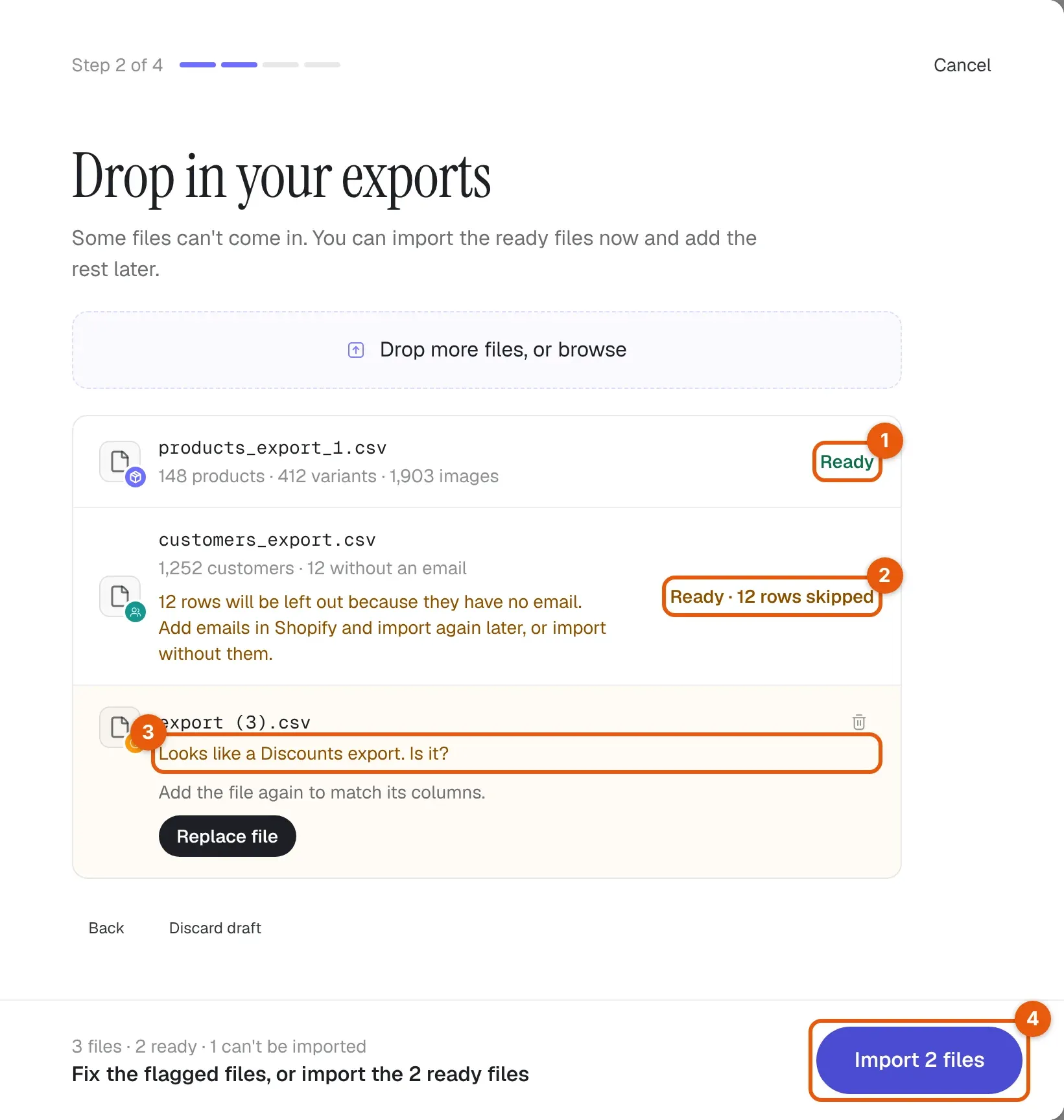
Runner reads each file before anything is imported and tells you what it found.
| State | Meaning | What to do |
|---|---|---|
| Ready (1) | Runner recognized the export and can import every row. | Nothing. Select the row to see what Runner found. |
Ready · {count} rows skipped (2) |
Some rows cannot come in, such as customers without an email. | Import without them, or add emails in Shopify and import again later. Download the {count} rows (CSV) lists them. |
Looks like a {kind} export. Is it? (3) |
The columns are close to a Shopify export but do not match exactly. | Select Yes, {kind}, or Map columns and pick the column in your file for each Shopify column, then Use these columns. |
| Excel file, Numbers file, Not a CSV | The file is not a CSV. | Save it as CSV UTF-8, then select Replace. |
| Not from Shopify | The file comes from another store platform. | Export the same data from Shopify, or remove the file. |
| Too large, Too many rows | The file is over 25 MB or 500,000 rows. | Use Replace with parts with smaller exports. |
| Upload failed | The connection dropped during the upload. | Check your connection, then select Retry upload. |
Select Import (4). The button counts the ready files, such as Import 2 files. If some files are left out, Runner asks you to confirm before it starts; files left out can be added afterwards.
To leave without importing, select Cancel, then Leave in Leave without importing?. The files you added stay in the draft for when you come back. Discard draft deletes the uploaded files; nothing in Shopify changes.
Follow the import
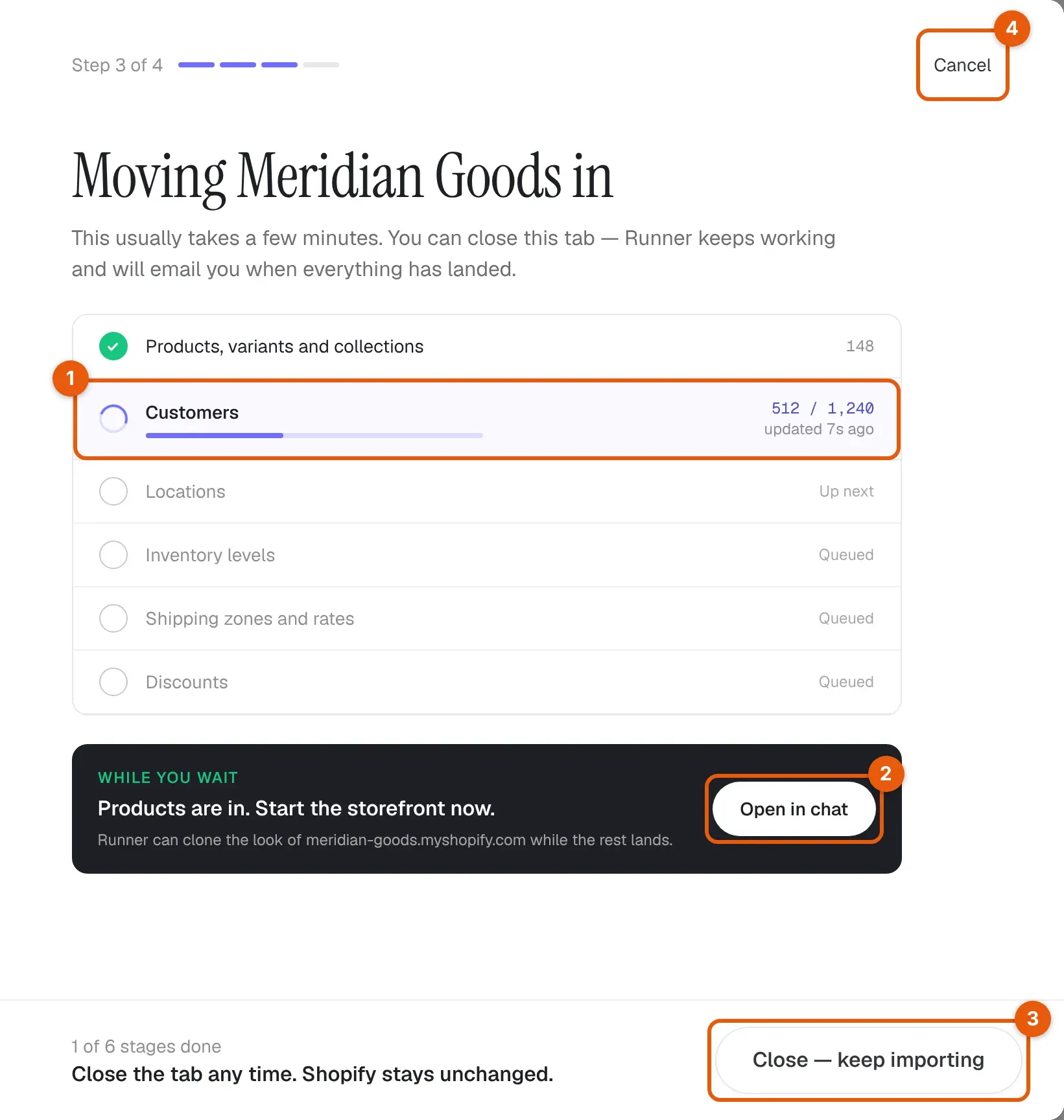
The progress view, titled with your store’s name (for example, Moving Meridian Goods in), shows each stage with its count. The running stage (1) shows how many records are done, such as 512 / 1,240. An import usually takes a few minutes.
| Control | Why you use it | What happens when selected |
|---|---|---|
| Open in chat (2) | Start the storefront while the rest of the data lands | Opens a new chat that asks Runner to clone the look of your Shopify site. |
| Close — keep importing (3) | Leave the import running | Closes the dialog. The import keeps running on Runner’s servers, and Runner emails you when it completes. |
| Cancel (4) | Stop the import | Opens Stop the import?. Stop import stops copying; records already in Runner stay. Keep importing returns to the progress. |
During a CSV import, Add files lets you add an export that is still missing. It imports after the stages already running and joins the same report.
| Status | Meaning |
|---|---|
| Up next, Queued | The stage is waiting for the stages before it. |
| Preparing your store…, Connecting to Shopify…, Reading… | The stage is starting. |
{processed} / {total} |
The stage is writing records. |
| Paused | Shopify asked Runner to slow down. The import picks up on its own; you do not need to do anything. |
A count, such as 148 |
The stage finished. |
Failed or Stopped at {processed} / {total} |
The stage did not finish. Records already in Runner stay. |
Check the result
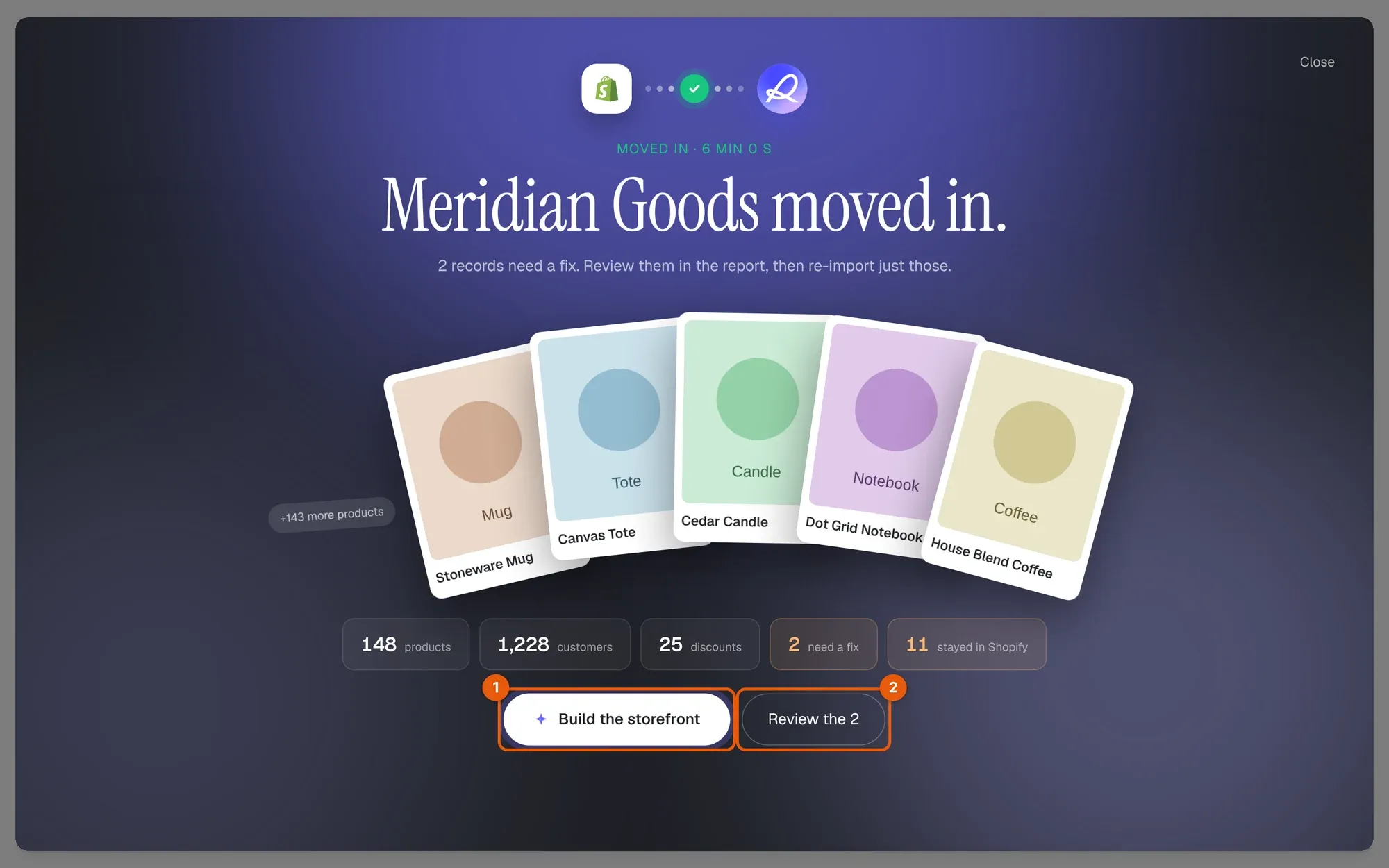
When the import completes, Runner shows your store’s name followed by moved in. (for example, Meridian Goods moved in.) with the number of products, customers, and discounts that came over, how many records need a fix, and how many things stayed in Shopify.
- Build the storefront (1) opens a new chat that asks Runner to clone the look of your current site.
- See the report, or
Review the {count}(2) when records need a fix, opens the import report.
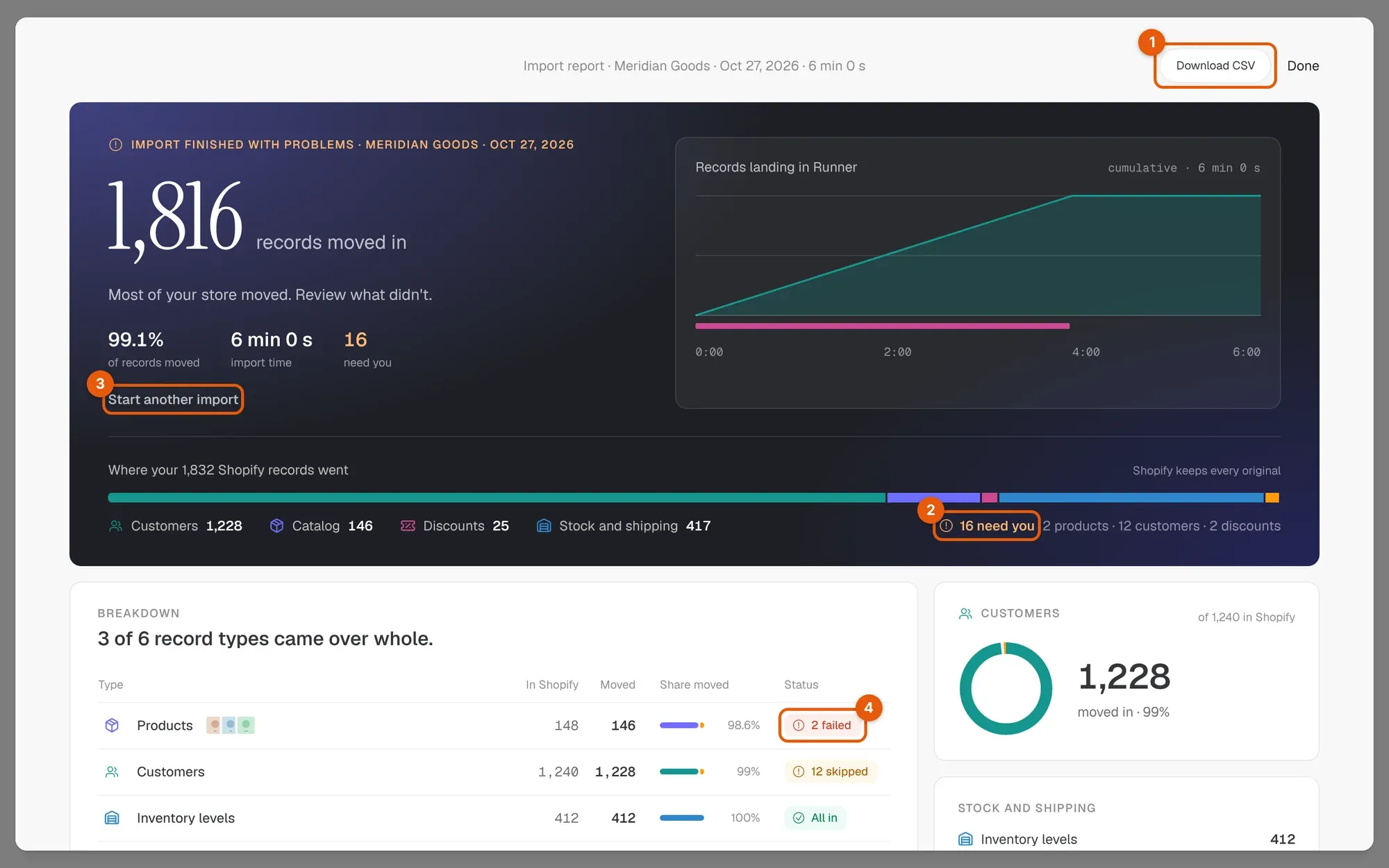
The import report shows how many records moved in and where each Shopify record went.
| Control | Why you use it | What happens when selected |
|---|---|---|
| Download CSV (1) | Keep a record of every item | Downloads import-report-{date}.csv with each record’s type, name, Shopify ID, handle, result, and reason. |
{count} need you (2) |
See the records that did not move cleanly | Opens Imported data with Didn’t move, Stayed in Shopify, and Moved in, with a note. |
| Start another import (3) | Import again after you fix records, or add what was missing | Returns to Move your store in. |
| A status in Breakdown (4) | Check one record type | Opens that type’s records under Moved, Need a fix, and Skipped, with Open in Shopify for each. |
| Done | Leave the report | Closes the dialog. Reopen it from Migration. |
Each record in the report has one of these results: Added, Updated, Unchanged, Kept the Runner version, Skipped, Needs review, or Couldn’t import. A record Runner could not import, such as a product whose handle is already in use, shows its reason. Fix it in Shopify, then import again.
The report also lists What stayed in Shopify, with chat actions such as Recreate collections in chat for things you recreate in Runner.
Import again
You can import the same store again at any time, for example after you fix records in Shopify or add products there. With Connect Shopify, Runner reuses the saved credentials and the button reads Update store.
- Nothing is doubled. Runner remembers each record it imported. A new import updates the matching Runner record instead of creating another.
- Unchanged records are left alone. If neither the Shopify record nor the Runner copy changed, the report shows Unchanged.
- Your Runner edits are kept. If you edited a record in Runner and it did not change in Shopify, the report shows Kept the Runner version. If both changed, the newer one wins.
- Nothing is deleted. A record you deleted in Shopify stays in Runner.
- CSV and Connect Shopify do not match each other’s records. If you import with CSV exports and later with Connect Shopify, some records can come in twice. Check for duplicates after the import.
Troubleshooting
| State | Meaning | What to do |
|---|---|---|
| Migration is missing from the top bar | The feature is not available for this workspace, or your role is not owner or admin. | Ask a workspace owner to start the migration or check your role. |
| Continue stays unavailable | The store is still setting up. | Wait for setup to finish. If Runner says Your store couldn't finish setup, retry store setup first. |
Shopify has no store at that address. |
The address is misspelled or not a Shopify store. | Copy the address from Settings → Domains in Shopify. |
Shopify didn't accept these. They may come from a different app. |
The Client ID and secret are wrong or from another app. | Copy both from Settings → Credentials of the same app, then select Check again. |
Those app credentials do not belong to the Shopify store you are importing. |
The app is installed on another store. | Install the app on this store, or use the app that is installed on it. |
This app is missing Shopify read access required for migration. |
The released app version lacks scopes. | Add the scopes, release a new version, install the app again, then select Check again. |
| Customer data blocked | Shopify won’t share customer records with the app. | In the Dev Dashboard, open the app’s Distribution card and choose Custom distribution, then select Check again. You do not need to reinstall. If you cannot, discard the draft and use CSV exports. |
| Store paused | Shopify says the store is paused or frozen. | Reactivate the store in Shopify, then check again. |
| Waiting on Shopify | Shopify is busy. | Runner tries again on its own and keeps what you pasted. |
This store already has an unfinished {source} import. |
Another import for this store is still open. | Resume it, or discard its draft before starting another. |
| Paused for a moment during the import | Shopify asked Runner to slow down. | Wait. The import picks up on its own. |
| The import didn’t finish | A stage stopped. If nothing moves for 5 minutes, Runner stops the import safely. | Select Retry import. Records already in Runner stay and are not doubled. |
Progress could not refresh |
The progress view could not reach Runner. | Select Retry now. The import itself keeps running. |
{count} photos can’t be opened |
Shopify’s photo links did not respond. | Check the photos in Shopify, then select Check again in the report. |
For the full list of messages and their recovery steps, see Shopify migration and import errors. If a problem continues, contact Runner support with the store name, the stage that stopped, and the import ID Runner shows.